Using Device Control to control Bluetooth devices
General information: The Bluetooth specification breaks down devices into Major and Minor classes. Depending on the class of device (the combination of major and minor class IDs), the Bluetooth protocol loads profiles that determine how it communicates. There are 11 major service classes, 32 major class combinations, and 64 different minor classes. Each major class and each minor class have its own class identifier in either binary or in hex.
There are two different ways to control Bluetooth devices with DriveLock. One is more restrictive and affects the individual Bluetooth devices, the other limits the services that a Bluetooth device can use.
Controlling Bluetooth controllers, devices, and services
Here, the individual Bluetooth controllers ("Bluetooth cards") are controlled first. Next, the actual Bluetooth devices that connect to the host. And finally, the device-specific services.
Here's an example:
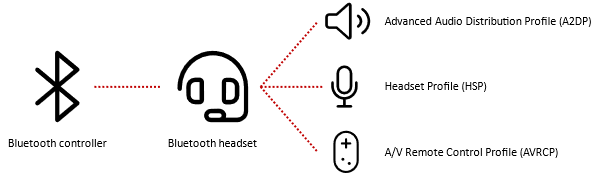
In this case, five whitelist rules must be created. One for the Bluetooth controller itself, one for the headset and one for each used service.
Using the example of a Microsoft Surface Pen on a Microsoft Surface Tablet, it could look like this:

Bluetooth adapters
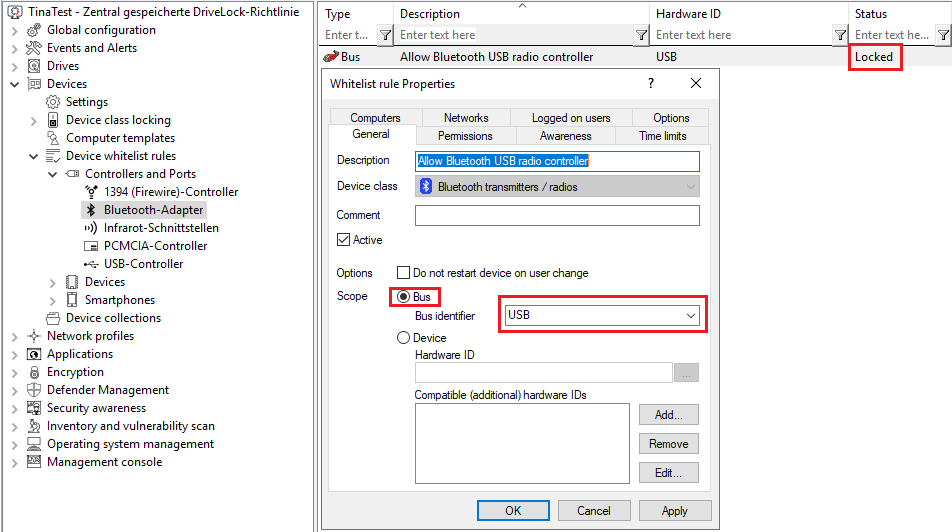
If you do not want to control specific Bluetooth adapters, you can also create a whitelist rule based on the bus. Internal Bluetooth radio controls are usually connected via USB. So you can create a whitelist rule that applies to all of them, see the following figure:
Bluetooth devices
The actual Bluetooth device is whitelisted with its Bluetooth associated terminal address ("MAC address"). This makes whitelisting of Bluetooth devices much more accurate, but also much more complex than, for example, wired USB input devices or headsets, since each individual device must be approved.
The bus may differ depending on the Bluetooth device. A Surface Pen is a Bluetooth LE device, so that the BTHLE bus is used. Apple Airpods Pro, on the other hand, is a classic Bluetooth device that uses the BTHENUM bus. Note that each device has a unique endpoint address associated with Bluetooth, for example
-
Microsoft Surface Pen: BTHLE\Dev_FA6B8712ACFF
-
Apple Airpods Pro: BTHENUM\Dev_EA9F6CDA1258
Bluetooth services
Every Bluetooth device uses one or more Bluetooth services. Basically, the services Hardware ID contains a suffix for the device itself with vendor and product ID. So you need to whitelist each service for each device.
If you want to simplify this, you can use wildcards. Then you can whitelist the needed service independently from a device.

As a result, the two services are no longer tied to a specific device, but can be shared with any Bluetooth device. However, this requires that the other device has been enabled with a corresponding whitelist rule.
In general, Bluetooth services are standardized. Some devices may use vendor-specific services. Each service has a unique ID. You can find all common service GUIDs here: https://www.bluetooth.com/specifications/assigned-numbers/
There are also Windows-specific Bluetooth services that have to be enabled with corresponding whitelist rules.
Controlling Bluetooth services
The second way to get control over Bluetooth is to restrict the services that can be used by any device. The main issue here is to prevent data transmission and allow devices that are needed for daily work, such as headsets or input devices, to access the Bluetooth services required for this.
The Allowed Bluetooth services option in the Bluetooth class locking is enabled for these purposes.
Control of authorized services is not as restrictive, but the administrative effort is very low.
For example, you can identify the services in use by pairing the device with a computer and then using remote agent control to detect the services.