Start a Defender scan
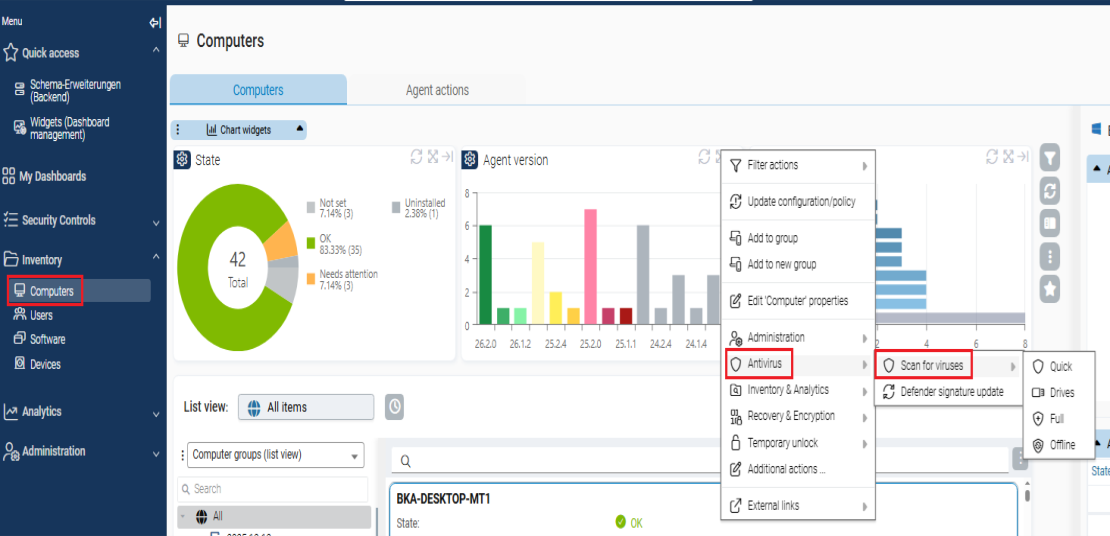
To scan an individual computer for viruses with Microsoft Defender, open Inventory and select Computers. Open the computer's context menu and select Antivirus > Scan for viruses.
Depending on availability, you can start the following scan types:
-
Quick: Scans areas of the computer where malware typically registers itself, such as registry keys and known Windows startup folders. The scan also includes mounted removable media such as USB drives.
-
Drives: Starts a scan of selected drives.
-
Full: Starts with a quick scan and then scans all mounted fixed drives as well as removable media and network drives, depending on the Microsoft Defender configuration.
-
Offline: Starts a Microsoft Defender Offline scan. The computer restarts and is scanned for malware outside the normal Windows operating environment. Windows restarts after the scan is complete.
For more information about the different scan types and Microsoft Defender scan behavior, see the Microsoft documentation.
The start of the scan is shown under Actions in the computer details. If a threat is found, it is displayed under Security Controls > Antivirus on the Threats tab.
From Antivirus > Defender signature update, you can start a Microsoft Defender signature update for the selected computer. This can be useful for troubleshooting if the Microsoft Defender signatures are out of date.
Offline scan
Starting with version 26.1, you can start a Microsoft Defender Offline scan directly from the DOC. Because the computer restarts for the scan and cannot be used while the scan is running, you can specify how the Offline scan is started on the endpoint.
When starting the Offline scan, you can specify:
-
whether the scan starts immediately or the user is allowed to postpone it,
-
how long the Offline scan notification is displayed, and
-
which personal message from the administrator is displayed to the user.
If a Defender Offline scan is available on the endpoint, this is shown in the computer's Microsoft Defender properties.
For the quick scan to run successfully, a user must be logged on locally to the system. Logging on through a Remote Desktop connection (RDP session) is not sufficient because Defender Management tasks cannot be performed from the DOC in RDP, Terminal Server, or Citrix sessions.