Taskbar notification area settings
Configuration: DOC -> Security Controls -> Agent Settings -> Agent user interface
Use these settings to define how notifications are displayed by the DriveLock Agent and which functions are available to users through the context menu of the DriveLock icon in the Windows notification area.
Open the Agent settings section in the DriveLock Operations Center, go to the Agent user interface tab, and select Taskbar notification area.
In the upper section, you configure how notifications are displayed by the DriveLock Agent.
-
Select the type of notifications to use.
-
Configure whether the DriveLock icon is displayed only while a notification is active.
-
Specify how long notifications remain visible.
-
Configure whether a sound is played when a notification is displayed.
In the Tray icon context menu section, you define which functions are available through the DriveLock Agent context menu.
-
Click Add to add menu entries. Click Remove to delete the selected entry.
-
Use the arrow buttons to change the order of menu entries.
-
Click Reset to restore the default configuration.
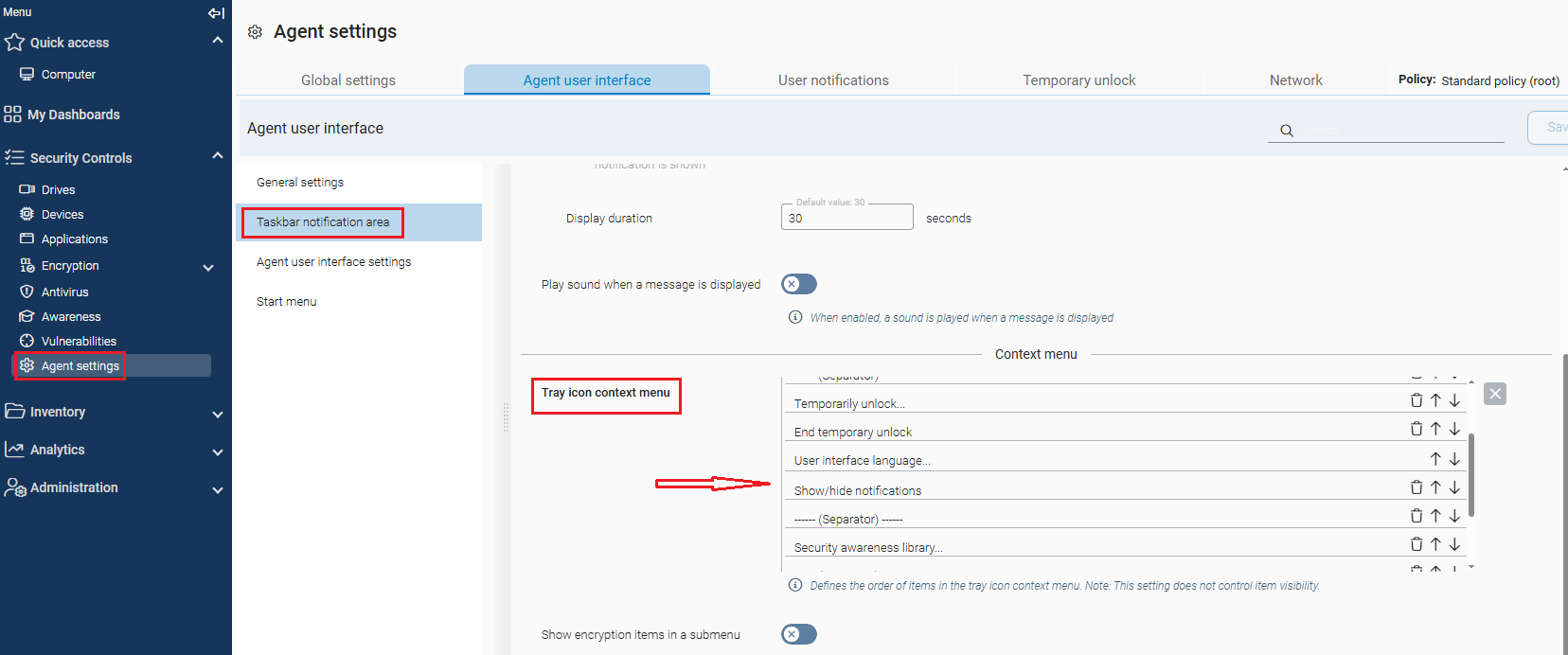
Available menu entries include agent status, user interface language, temporary unlock, and show/hide notifications.
For example, if you add the Show/hide notifications entry (see figure), users can temporarily disable DriveLock notifications through the DriveLock Agent context menu.
On the agent, this entry appears as Disable notifications.
This feature can be useful during presentations, webinars, or screen-sharing sessions to prevent DriveLock notifications from appearing on screen.
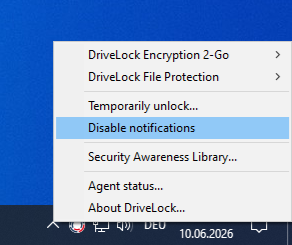
Notifications are automatically re-enabled after four hours. Users can also re-enable them manually at any time.
Configuration in the DriveLock Management Console
The taskbar notification area settings can also be configured in the DriveLock Management Console. To do so, open Global configuration in a policy, navigate to Agent user interface settings, and edit Taskbar notification area settings.