Automatic updates
DriveLock Agents and the DriveLock Management Console (DMC) can be updated automatically to newer versions.
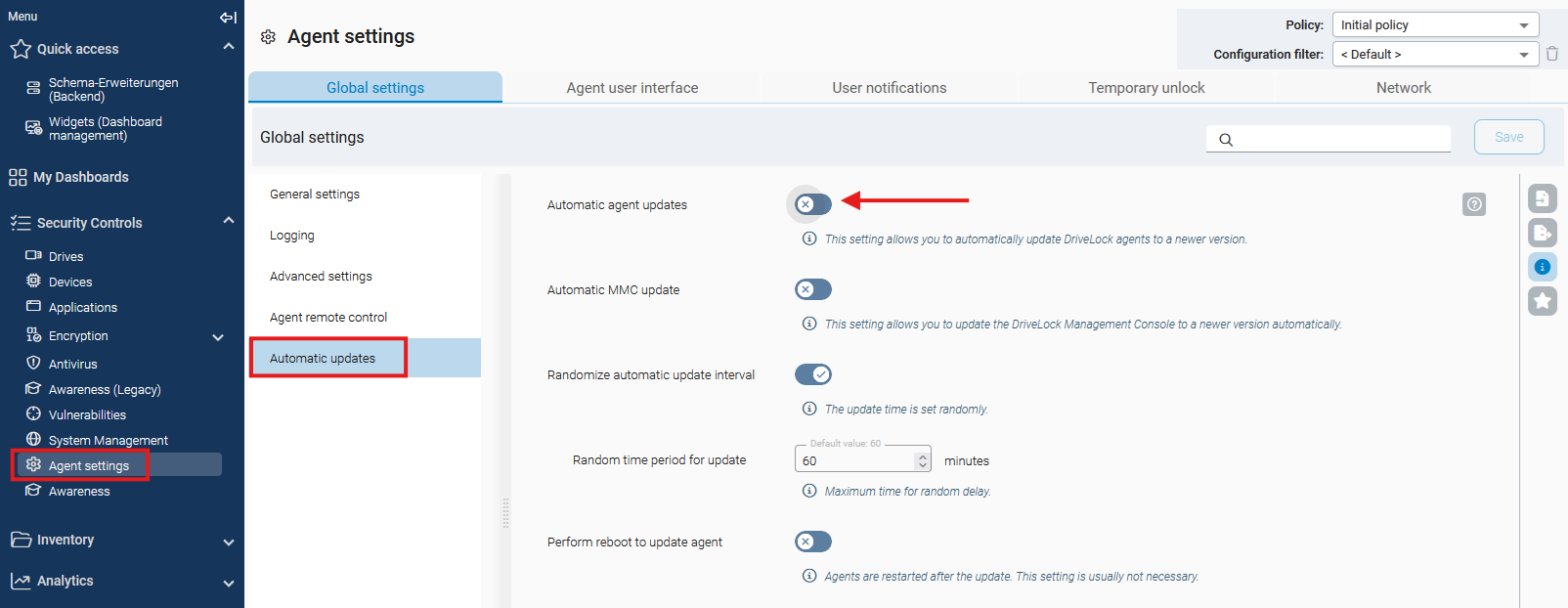
Configuration: DOC -> Security controls -> Agent settings -> Global settings -> Automatic updates
In the agent settings, you specify whether DriveLock Agents and the DriveLock Management Console are updated automatically. These settings apply to all computers assigned the corresponding policy.
Enable the following options as needed:
-
Automatic agent updates: Enables automatic updates of the DriveLock Agent.
-
Automatic MMC updates: Enables automatic updates of the DriveLock Management Console (DMC).
Specify when updates occur
Select Randomize update time to schedule updates within a random time interval. This prevents all computers from downloading and installing the packages at the same time.
Under Random update interval, specify the maximum delay in minutes. The default is 60 minutes.
Restart after an update
If you enable Restart to update agent, the computer restarts as part of the agent update. This setting is generally not required.
How package management affects updates
In the DOC, specify the package version used for automatic updates under Settings -> Installations -> Configured packages.
Automatic updates must be enabled in the corresponding policy and configured on the server through package management.
If the DriveLock Agent was originally installed using Microsoft Configuration Manager (SCCM), use SCCM for subsequent updates as well. In this case, do not use the DriveLock automatic update option.
You can monitor automatic updates through events in the DriveLock Operations Center (DOC).
Troubleshooting
If the server cannot be reached during an automatic update, check whether the required download addresses are allowed through the firewall. When using the DriveLock cloud package source, this may include the following address: https://dlpackages.blob.core.windows.net/*
