Configuring masking rules
Masking rules allow you to mask personal data in file paths, selected properties, and individual event parameters in addition to the built-in data masking. You can hide either entire values or specific parts of a value.
Masking rules are available in the Custom data masking mode. For more information, see Data masking.
Configuration: DOC > Administration > Accounts > Data masking
Configuring masking rules
-
Enable data masking and select the Custom data masking mode.
-
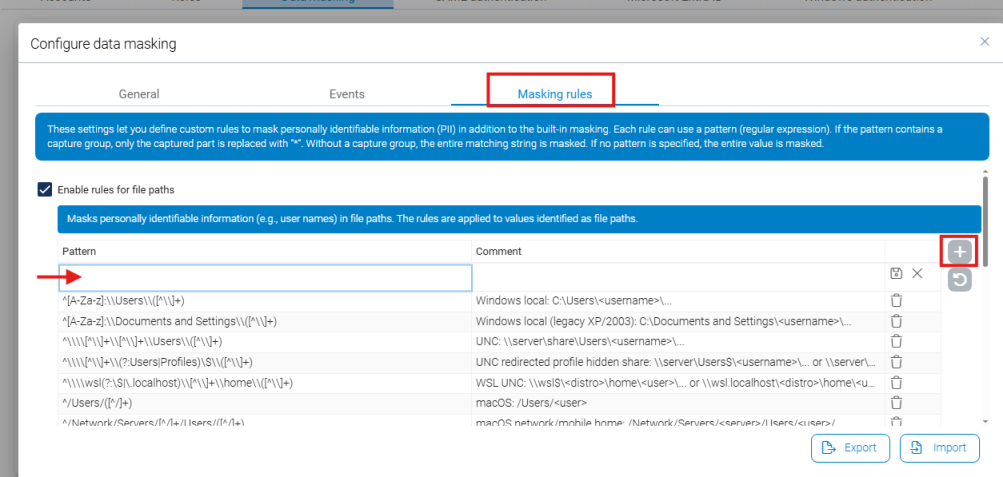
Click Configure and open the Masking rules tab.
-
Enable the required rule types and configure the corresponding masking rules as described below.
-
Save the configuration.
Full and partial masking
For each masking rule, you can specify a regular expression (RegEx) under Pattern. This determines which parts of a value are masked.
-
Without a pattern: The entire value is masked.
-
Pattern without a capturing group: The entire string matching the regular expression is masked.
-
Pattern with a capturing group: Only the part matched by the capturing group is replaced with asterisks (*). The remaining parts stay visible.
Rules for file paths
File path rules allow you to mask personal information, such as user names in directory paths. The rules are applied only to values recognized as file paths.
Predefined patterns are already available for typical user directories on Windows, Linux, and macOS, as well as network paths.
-
Enable Enable file path rules.
-
Click the plus sign to the right of the table to add a new rule.
-
Enter a regular expression under Pattern and, if necessary, add a Comment.
-
Save the new rule using the save icon in the table row.
You can remove existing rules and restore the predefined patterns using Reset to defaults.
Rules for selected properties
These rules allow you to mask specific properties. The property is identified by its name and, if applicable, its schema.
-
Enable Enable rules for selected properties.
-
Click the plus sign to the right of the table.
-
Under Property, enter the name of the property to be masked.
-
If necessary, specify the associated schema under Schema. Without a schema, the rule applies to this property in all schemas.
-
Optionally, specify a Pattern and a Comment.
-
Save the rule using the save icon in the table row.
Rules for event parameters
These rules allow you to mask individual parameters of specific events. This is particularly useful for event parameters whose contents are not already covered by the built-in data masking.
-
Enable Enable event parameter rules.
-
Click the plus sign to the right of the table.
-
Specify the Event ID.
-
Select the Event source ID.
-
Under Parameter, enter the number of the event parameter to be masked.
-
Optionally, specify a Pattern and a Comment.
-
Save the rule using the save icon in the table row.
A separate rule must be defined for each event parameter to be masked. To mask multiple parameters of the same event, create a separate rule for each parameter.
Importing and exporting masking rules
You can export and import masking rules using Export and Import, respectively.