Best practice for licensing
Once you have received your DriveLock license as a key or file, proceed as follows:
-
Open the Settings
 in the DriveLock Operations Center (DOC) and select the Licenses menu command.
 -
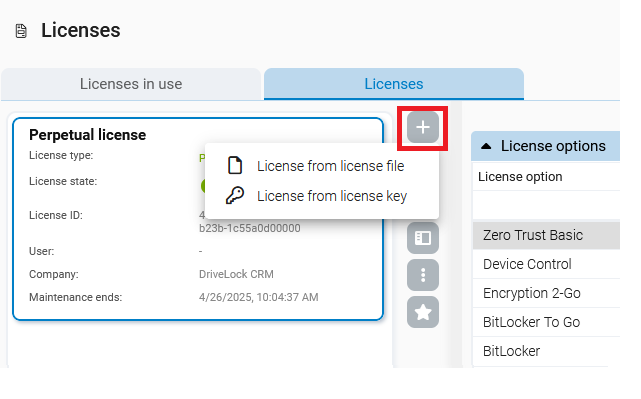
Enter your license on the Licenses tab. An overview shows you a summary of the license information.
-
DriveLock automatically creates a separate license policy for each tenant in advance. This policy is a 'DOC managed' policy and contains your purchased licenses. It is displayed in the DOC as the 'default license policy' and cannot be edited. The version is changed automatically each time the license is changed.
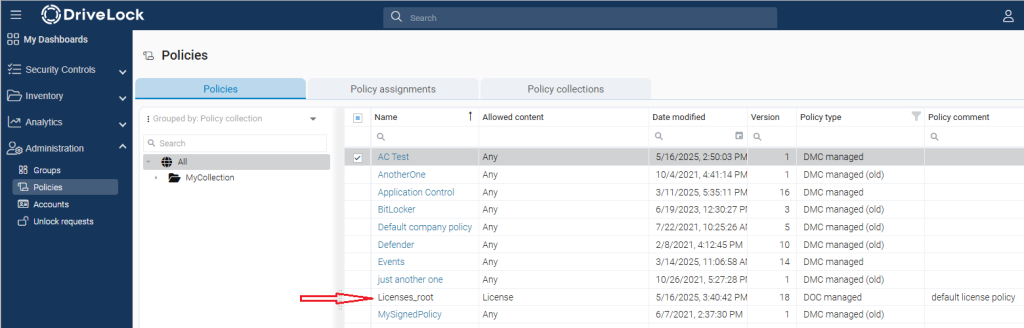
For this policy, an assignment is automatically created for all DriveLock Agents. This means that a license exists, but the DriveLock modules contained in the license are not yet activated.
The assignment of the license policy is given low priority so that any existing policies with licenses are not overwritten.
-
Next, you need to activate the modules. The best way to do this is to create a policy for each module; for example, a policy that configures the settings for the Application Control module. If you create a policy from the DOC, select DMC managed as policy type and provide a descriptive name (e.g., Application Control).
We recommend that you create separate policies for your respective DriveLock modules. For example, you can configure Application Control in one policy and activate the Application Control module here. In another policy, you configure Device Control and activate the Device Control module there. Then, policy assignment controls module distribution to the respective computers.
As soon as the DOC Companion has opened your policy (e.g. the Application Control policy), you will be in the policy editor of the DMC. Here, go to Global configuration, then Settings, then Licenses, and open the Modules tab.
-
Select the DriveLock Agents on which the corresponding modules are to be enabled.
This allows you to avoid
-
a particular module from being used on too many DriveLock Agents (only active modules “use” a license);
-
modules from being initialized on an agent where they are not needed.
If you set modules to the value not configured, the settings from another policy are used. This means that you can also configure different modules in different policies.
In the figure below, the Application Control and Application Behavior Control modules are enabled and configured accordingly in the ‘Application Control’ policy.

-
- Finally, assign the policy to the corresponding DriveLock Agents so that the settings (here for Application Control) can become active there.