Entering licenses via the DMC
We recommend that you license the product via the DriveLock Operations Center (DOC) as described in the best practices.
You can continue to enter your licenses in the same way as before version 2024.2 in the policy editor of the DriveLock Management Console (DMC) by navigating to Global configuration in the Settings subnode and then selecting License.
If you are using DriveLock On-Premise and have installed a DriveLock Enterprise Service (DES), you will need to transfer the license information directly to the DES. Certain server functions, for example downloading the Security Awareness Content AddOn, can only be activated if a valid license is present on the DES.
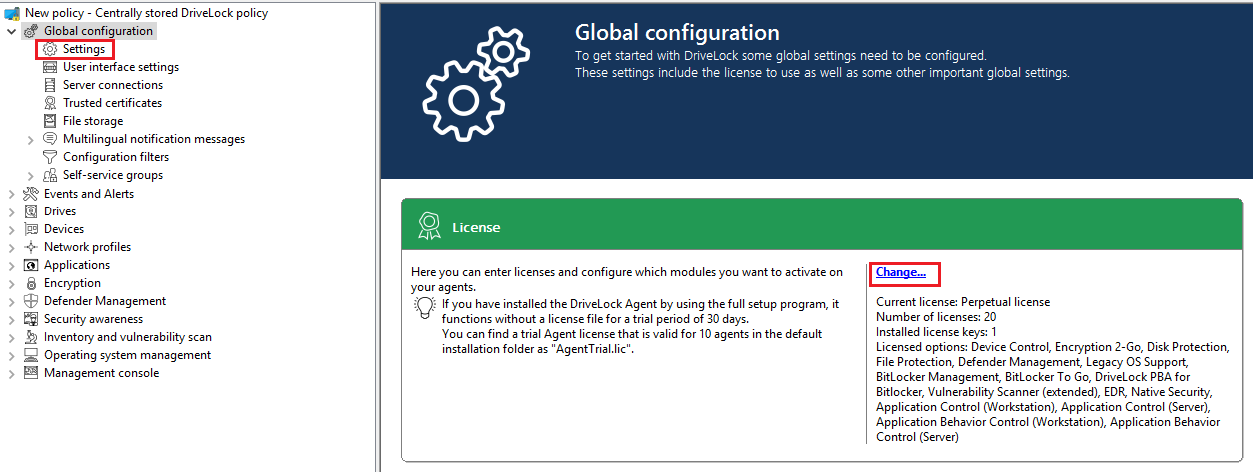
Click Change... to open the license dialog.

The General tab displays the license status of each module. Please find information on how to activate the modules here.
On the Licenses tab, you can add your license file or license key, or remove expired or trial licenses if necessary.
Follow the license activation steps in the wizard.
The DriveLock license can be activated either online or manually by calling the DriveLock Activation Center. For online activation, select Online . If you need to specify a proxy server for your Internet connection, click on Proxy and enter the server name, a user and the appropriate password.
The license is activated by connecting to the DriveLock activation server. This usually takes only a few seconds.
Instructions for telephone activation:
-
To avoid discrepancies, please make sure that the computer you use for activation has a current time and the correct time zone.
-
The activation code is valid only for a certain period of time. You must enter the activation code within one hour, otherwise you will have to request a new activation code. If this happens, click Cancel and start the Activation Wizard again.
We recommend transferring the licenses to the DriveLock Enterprise Service after successful activation. At this point, specify the server name where your DriveLock Enterprise Service is installed. If you do not specify a name, the transfer process will be skipped.
To view the contents of a license, highlight the desired license and click Properties... .