Settings
Configuration in DOC -> Security controls -> Agent settings -> Network -> General settings
The following settings can be configured both in the DOC and in the DriveLock Management Console (DMC) for network profiles:
|
Setting |
Configuration |
|---|---|
|
Allow users to configure personal networking profiles (compatible with agents prior to 2022.2) |
This setting can only be used for agents with older versions (before 2022.2). This feature is no longer available for new agents. |
|
Disable WiFi connections when computer is connected to LAN |
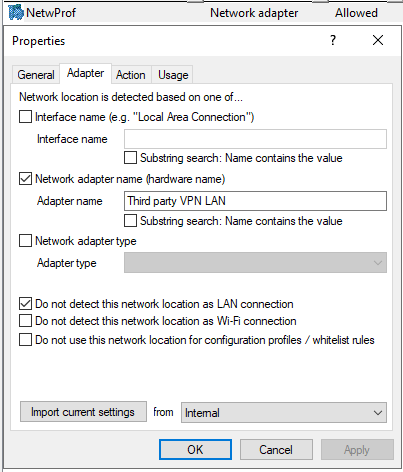
DriveLock provides the ability to disable wireless network adapters (if any) when the computer is connected to a LAN. This can prevent cross-network links, which can usually pose a security risk to your infrastructure. WiFi connections are blocked during this time. When this setting is disabled, Wi-Fi adapters previously disabled by DriveLock are automatically re-enabled. Use case: Deploying third-party VPN clients WiFi connections should not be allowed if there is a network connection. On notebooks, a third-party VPN client ( no Windows-integrated VPN connection) is used to connect mobile users to the corporate network. The third-party VPN client installs a virtual network card. Use case: A client is connected via WiFi and establishes a connection via VPN: If the option Disable WiFi connections when computer is connected to LAN is enabled, the WiFi connection will be disconnected because DriveLock thinks it is connected to a physical network. To allow the VPN connection via WiFi outlined in the example, you need to exclude the VPN client's virtual network card in DriveLock. In the DriveLock Management Console (DMC), select Network Profiles -> Locations / Sites - right-click on New -> Network adapter - Adapter tab, see illustration. There, select a method to uniquely and reliably identify the VPN client's virtual network card. Once the VPN client is installed locally, you can import information on the network card selection and settings as criteria directly:
To exclude the adapter in this scenario, select the Do not detect this network location as LAN connection option:
|
|
Display notification area icon |
This setting allows you to configure the visibility of profiles and their appearance to the user. If you do not want network profiles to be displayed, disable the Display notification area icon setting. When enabled, the icon defined for a network connection is displayed in the taskbar. You can also choose whether the icon is visible only during a message or all the time. Alternatively, this setting can be found in the DMC under Taskbar notification area settings. |