Temporary unlock from the DOC
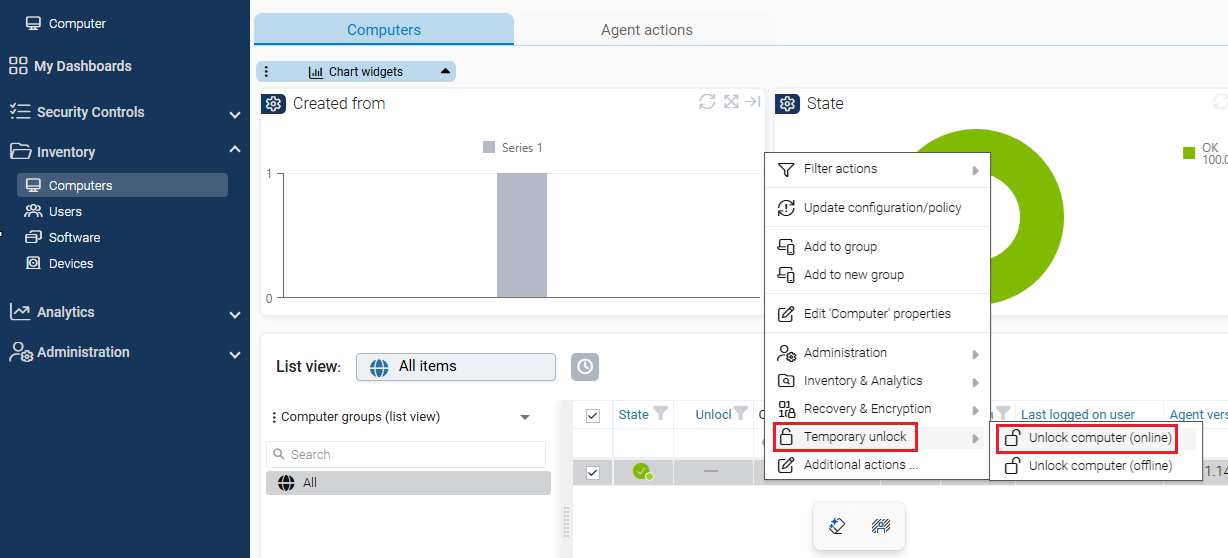
Configuration: DOC -> Inventory -> Computers -> Temporary unlock -> Unlock computer (online)
You can temporarily unlock USB drives on macOS agents directly in the DriveLock Operations Center (DOC) using the Unlock computer (online) action. The macOS computer must be shown as online in the inventory.
The following example starts the unlock wizard for the selected macOS computer.
In the unlock wizard, you can select all connected USB drives or individual USB drives for temporary unlock and specify the unlock duration.
The temporary unlock ends after the configured time limit. If an absolute end time is specified, the unlock remains active after a restart as long as that time has not been reached.
You can end the temporary unlock early using the Stop unlock option.