Use case: Create a temporary unlock
A temporary unlock allows administrators to grant a connected DriveLock Agent temporary access to blocked drives, devices, smartphones, or applications. In addition, Microsoft Defender management can be disabled for the duration of the unlock.
This use case shows how to create a temporary unlock for a connected computer in the DriveLock Operations Center (DOC).
For information about unlocking computers that cannot connect to the DriveLock Enterprise Service, see Use case: Create an offline unlock.
Proceed as follows:
-
Open the Inventory > Computers view in the DOC and select the relevant computer.
-
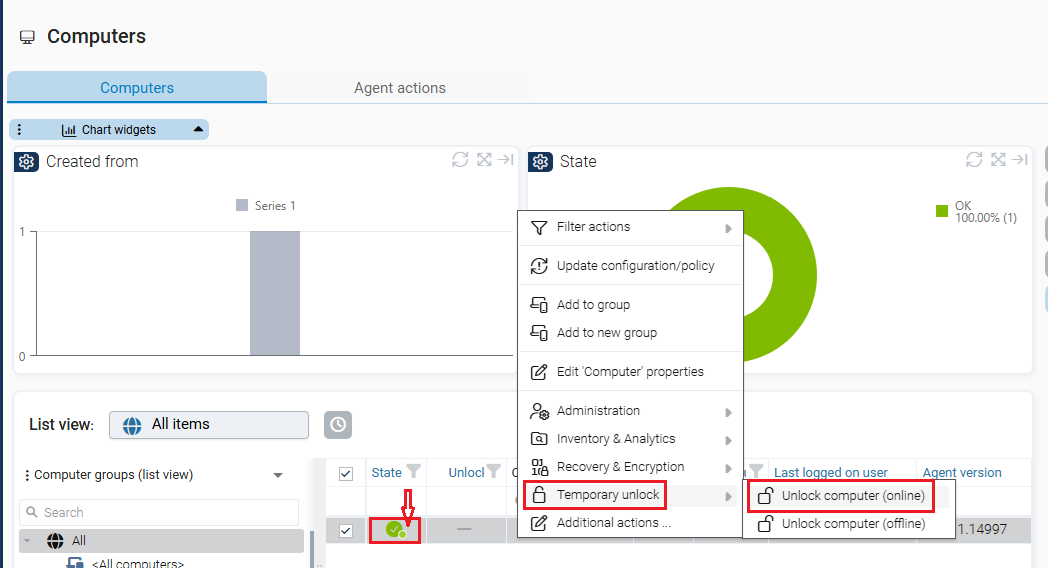
From the computer's context menu, select Temporary unlock > Unlock computer (online).
-
The Temporary Unlock Wizard opens.
-
Configure the required unlock settings. Depending on the use case, you can, for example:
-
specify how long the unlock lasts,
-
specify a reason for the unlock,
-
unlock individual drives, drive types, devices, or device classes,
-
temporarily disable Application Control,
-
temporarily disable DriveLock management of Microsoft Defender.
You do not have to complete all pages of the wizard. Once you have configured the required settings, you can start the unlock.
-
-
Click Unlock to activate the temporary unlock.
-
You can monitor active unlocks in the DOC under Analysis > Unlocks > Temporary unlocks. Among other information, the view shows the user, computer, unlocked categories, and the start and end times of the unlock.
-
An active unlock can be terminated before it expires. To do so, select Temporary unlock > End unlock from the computer's context menu.
Related topics