Use case: Process an unlock request for a device
This use case shows how a user requests an unlock for a blocked device and how the request is subsequently processed in the DriveLock Operations Center.
The unlock request feature is available across platforms and can be used with Windows, Linux, and macOS agents.
Please do the following:
-
The user opens the DriveLock user interface and selects Request unlock.
-
The available devices are displayed in the dialog. The user selects the required device, enters a reason for the unlock, and submits the request.
-
The unlock request appears shortly afterwards in the DOC under Analysis > Unlocks > Unlock requests.
-
The request can be processed in the details view.
-
After approval, the device can be used according to the selected unlock.
-
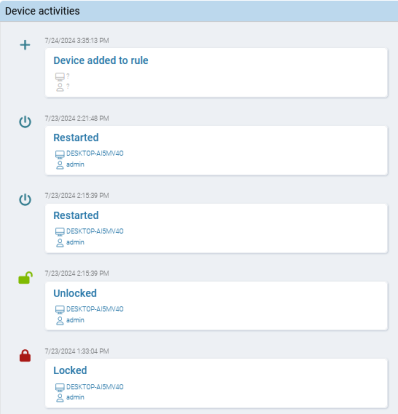
The device appears in the device overview. There, you can review the associated device activities and unlocks.
Related topics