Managing unlocks
Configuration: DOC > Analysis > Unlocks
In the Unlocks area, you can manage unlock requests as well as active and completed temporary unlocks. You can also approve or reject unlocks and permanently add them to policies.
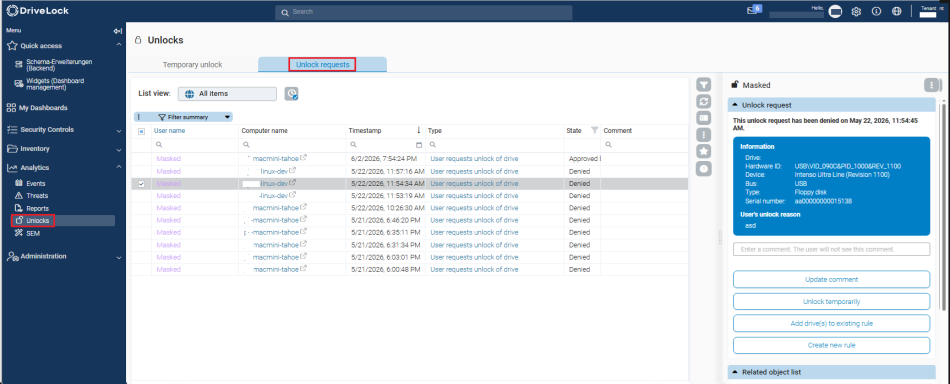
View unlock requests
The Unlock requests tab displays all submitted requests. The list contains information about the user, computer, date and time, type, and status of each request.
The details view provides additional information about the requested object and the reason specified by the user.
Process unlock requests
Select an unlock request to display the available actions in the details pane.
-
Edit comment: Adds or modifies the comment for the unlock request.
-
Temporarily unlock: Creates a time-limited unlock for the requested object.
-
Add to rule: Adds the requested object to an existing policy.
-
Create new rule: Creates a new policy based on the unlock request.
This allows unlock requests to be permanently incorporated into the policy configuration.
View temporary unlocks
The Temporary unlocks tab displays active and completed unlocks.
The overview contains information about the unlocked computer, the unlock period, and the current unlock status.
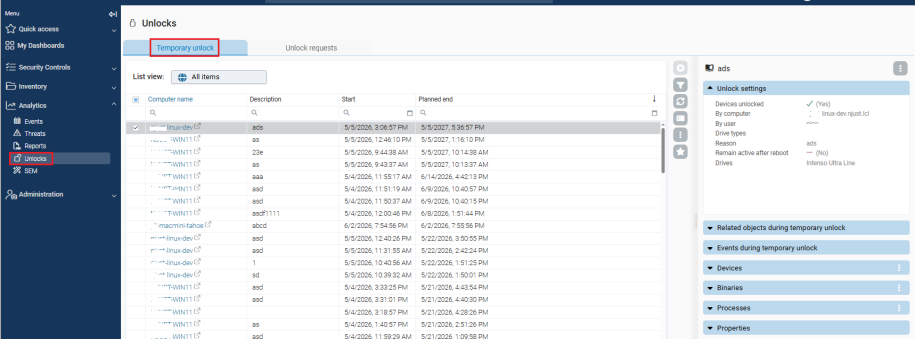
View unlock details
The details view contains information about the selected unlock. Depending on the unlock type, it may display unlock settings, associated objects, events, devices, applications, or processes.
End temporary unlocks
Active temporary unlocks can be ended at any time before they expire. To do so, select the required unlock in Analysis > Unlocks > Temporary unlocks and end the unlock using the available actions.
Related topics